
NOTE: To present, your device must be connected to an external monitor.
When in present mode, you can present your case on an external monitor.
Open your case and select the Files or Timeline tab, depending on what you want to present.
To turn on present mode, click Present in the header.
The present mode remains on until you click Stop or close the case. You can navigate from the Files tab to the Timeline tab in the same case without having to turn Present off and on.

Presentation tools are displayed at the top of the view pane in the app, and a black screen with the Case Crafter logo is displayed on the external monitor.

Present Your Case
Click on the yellow eyeball icon to view a file or the timeline on the external monitor. The icon turns white to indicate that the file or timeline is being shown on the external monitor. Click it again to stay in present mode while hiding the file or timeline.

NOTE: Only the file or timeline itself is shown on the monitor. The presentation tools do not show.
Any action you take on a file is shown on the external monitor as it is performed – scrolling, highlighting, callouts, pen, etc. When you move or resize a callout, the external monitor previews the change as you make it, so you see what the audience sees.
Likewise, scrolling and zooming on the timeline is displayed on the external monitor as it occurs. If you open a fact, the files linked to the fact are displayed on the external monitor. No other tools or actions are displayed on the external monitor.
Laser Pointer Tool
While presenting, you can enable the laser pointer function by clicking the button with the red dot in the presentation tools. NOTE: You must be presenting (the eyeball icon will be white instead of yellow) to use the laser pointer. The button will turn yellow to indicate the laser pointer is on.
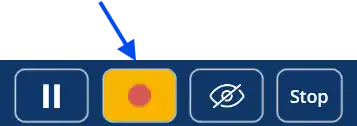
A red dot will appear on the external monitor and will mirror the cursor movements you make in the app.

Compare two files while presenting
Click Compare in the file header to open a second file next to the first. Both files are shown side by side on the external monitor. Compare also works inside an event opened from the timeline. See Compare two files.
Pause
To pause actions from being shown as they are performed, press the pause icon – it turns yellow.

The file or timeline will still be displayed on the external monitor, but actions are not shown as they are performed. To resume, click the pause icon again.
TIP: Using pause is helpful when you want the display to stay visible but need to perform other actions in the app without the audience seeing them.
Stop Presenting
To stop presenting, click Stop.