
To edit an event, click it in the timeline to open it. To close the event, click Back.
You can:
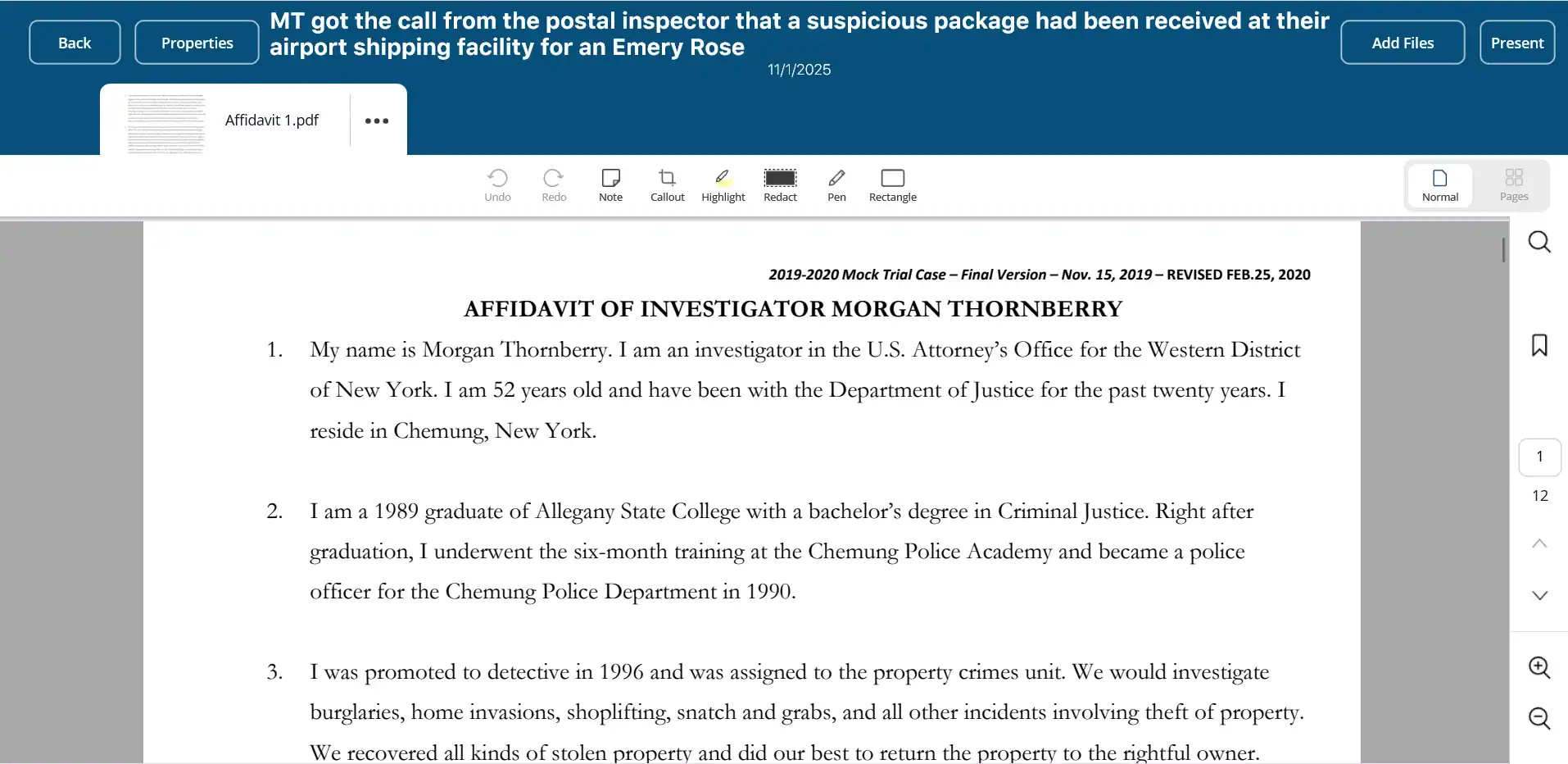
Event properties
To view or edit the properties of the event, click Properties in the header.
The Edit event window is opened.
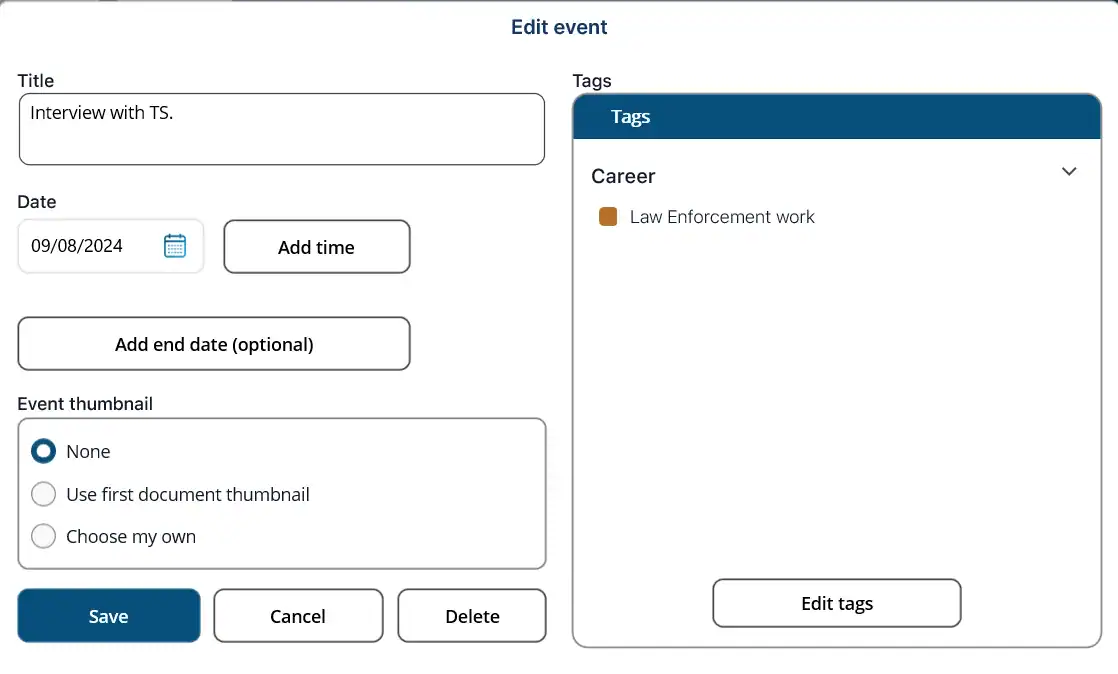
Make any necessary edits, then click Save. See Add Event for details on each field.
To delete an event, click Delete. You will be asked to confirm the action. This will delete the event from the case, and it will no longer be displayed on the timeline.
Files
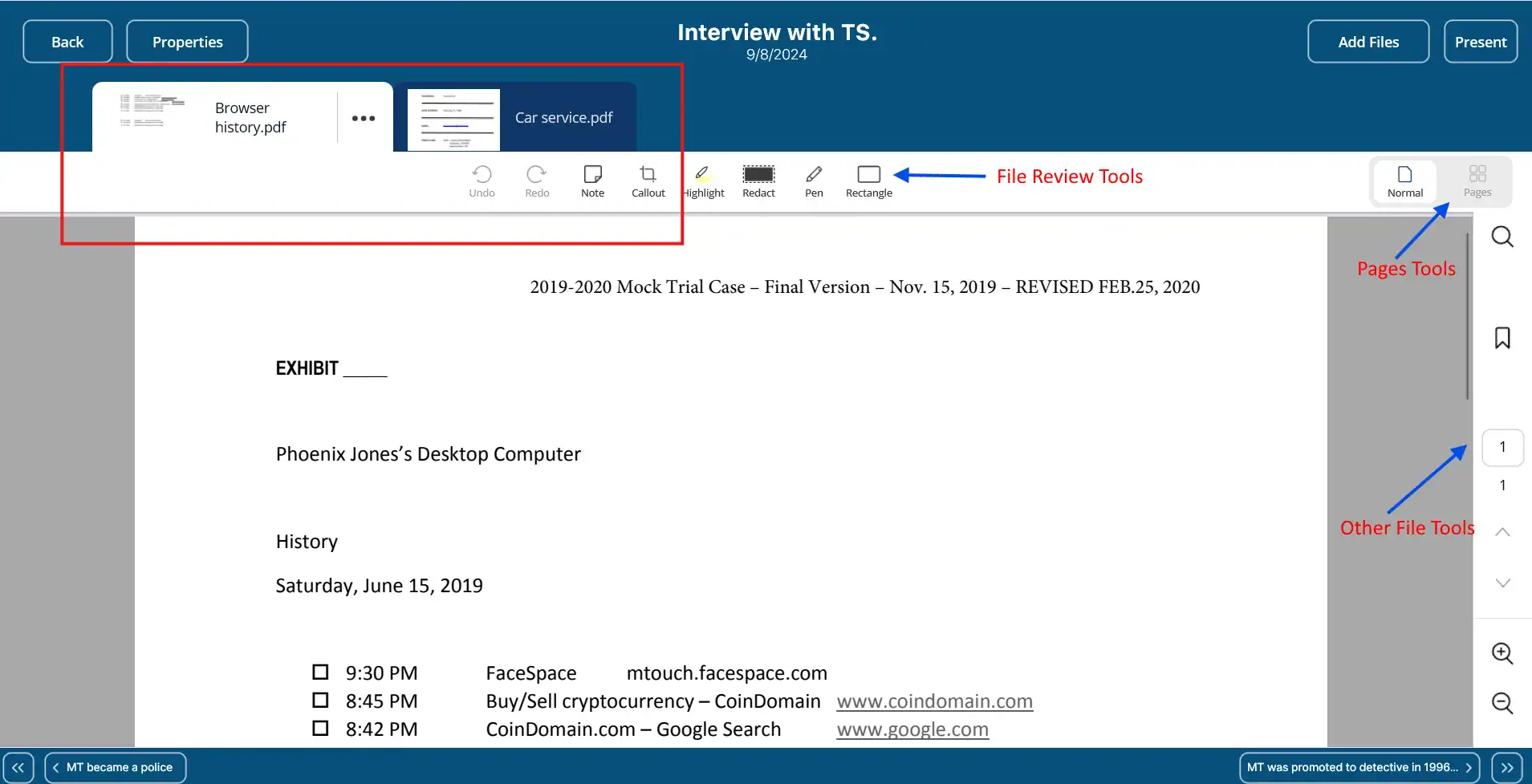
Any files added to the event are displayed in tabs. You can click on a tab to view the file.
You can:
NOTE: File properties cannot be edited here. You can edit file properties by accessing the file on the Files tab. See File Properties under Other File Tools.
You also have file review tools, and limited other file tools available for each file. See File Review Tools and Other File Tools.
Add files
Connect files to the event by clicking Add Files in the timeline header.
The Add files to event window opens.
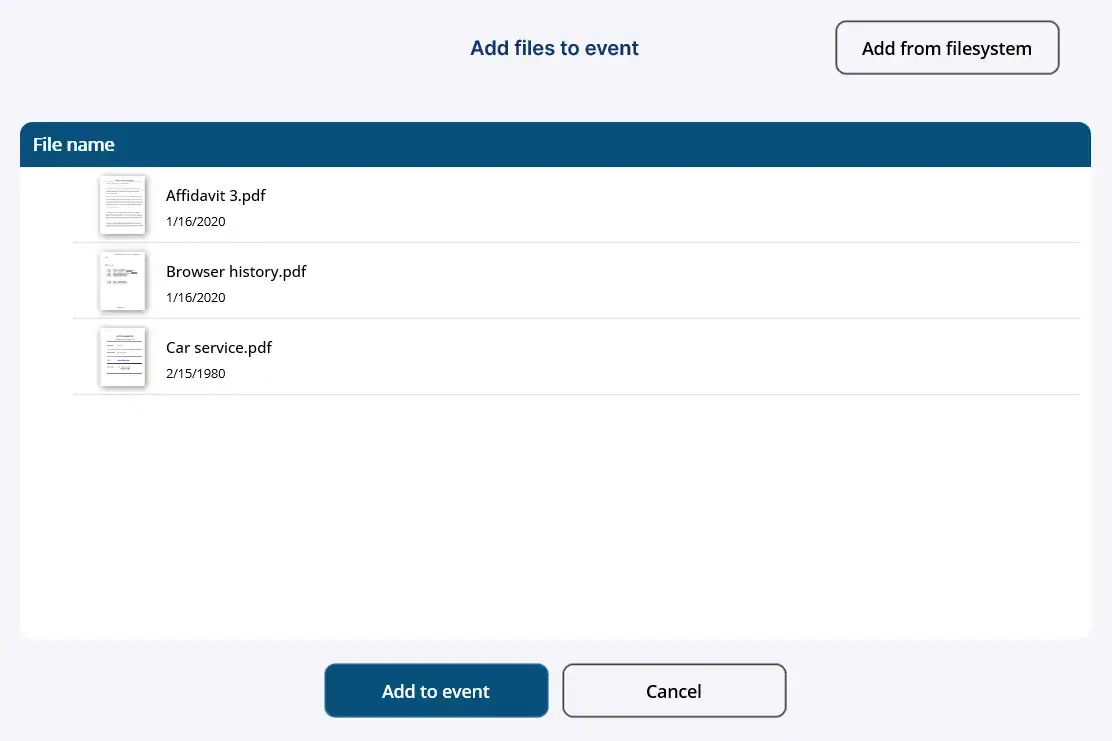
Available case files are displayed. Select the files you want to add to the event and click Add to event.
You can also add files from your device. Click Add from filesystem. Your device’s file system is opened. Select files. The files are added to the list in the Add files to event window and are automatically selected. Click Add to event.
NOTE: When you select a file from your device, it is added to the case files and appears in the list of files on the Files tab.
Rename file
You can rename a file by clicking the ellipses (three dots) next to the file name and selecting Rename.
The Rename file window opens.
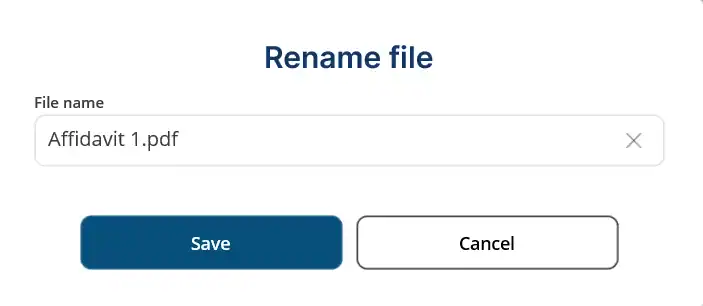
Enter a new name and click Save. NOTE: This will rename the file at the case level.
Set start page
When the file is opened within the event, it opens to the first page by default.
You can set the start page for a file by clicking the ellipses (three dots) next to the file name and selecting Set start page.
The Set file start page window opens.
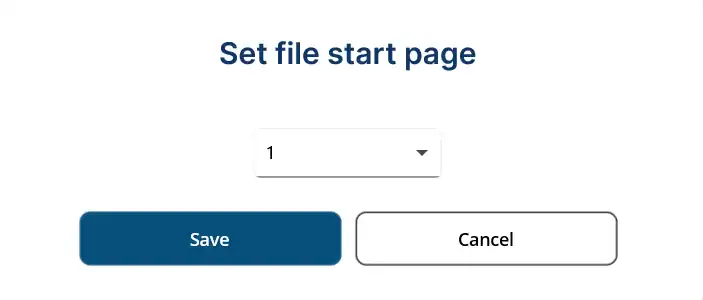
Select the page number you want the file to start on when the event is opened, then click Save. The next time the event is opened, the file will be opened to the selected start page.
NOTE: This can also be done from within the file itself. See Connected Events under Other File Tools.
Reorder files
You can change the order file tabs appear by clicking the ellipses (three dots) next to any file name and selecting Reorder. The Reorder the files window appears.
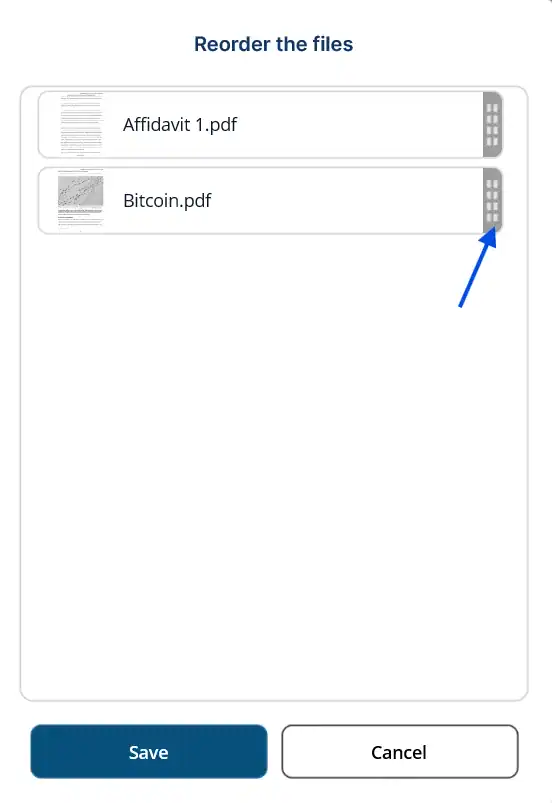
Click the drag handle for a file and drag and drop it in a new position. After making all desired changes, click Save.