Create New Case

Last updated on 16 Sep 2026

To add a new case, click New Case.

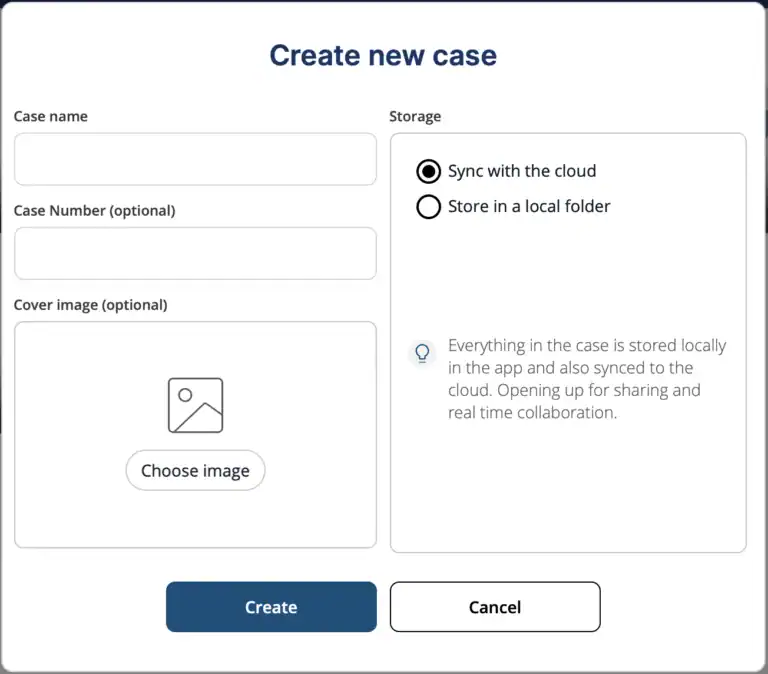
The Create new case window is opened. 

Enter a Case name.

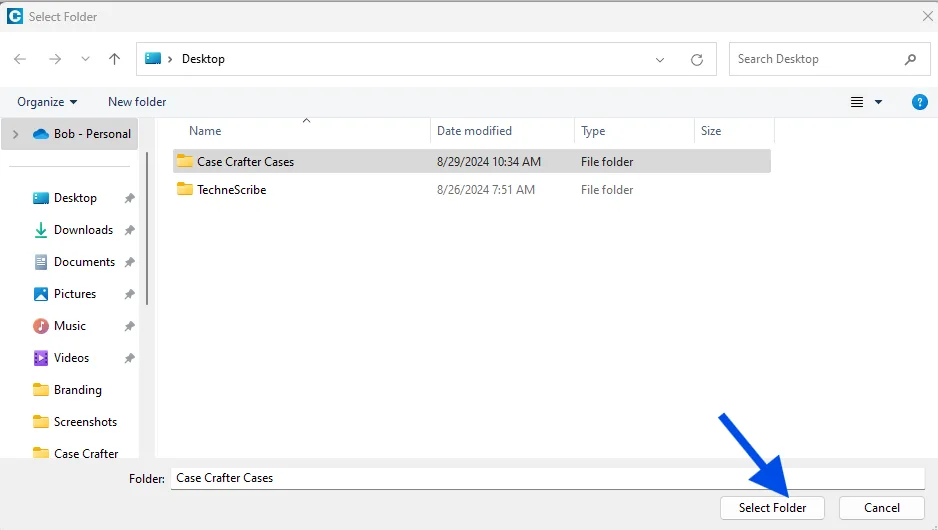
A Case Number and a Cover image are optional: the case number becomes the default footer on exhibit stickers, and the cover image is shown on the case card on the main page. Under Storage, choose Sync with the cloud (the default) to keep the case in the app and synced to the cloud, so it is available on all your devices and can be shared, or Store in a local folder to keep it on this device only. See Cloud Cases and Sync. For a local case, a location is suggested. NOTE: On an iPad, you must select a location; one will not be suggested automatically. If you want to change the location, click Change, find a location on your local drive, and click Select Folder. 

An arrow pointing to a "Select Folder" button in a file folders pop-up.

Click Create to add the new case. 

NOTE: For a local case, a folder with the case name in the location you specified is created. It will contain a searchindex folder, and a casedatabase Case Crafter Data File. The Case Crafter app uses these items. Do not edit or remove these items. 

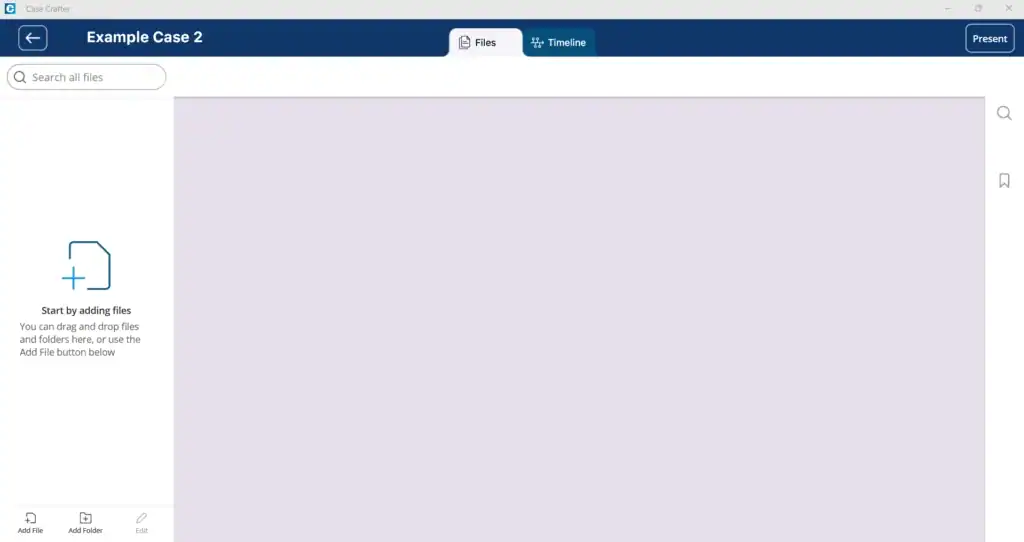
The case is created and opened so that you can add case related files. See Add and Organize Files.

You can click the left arrow button in the header to return to the main page.

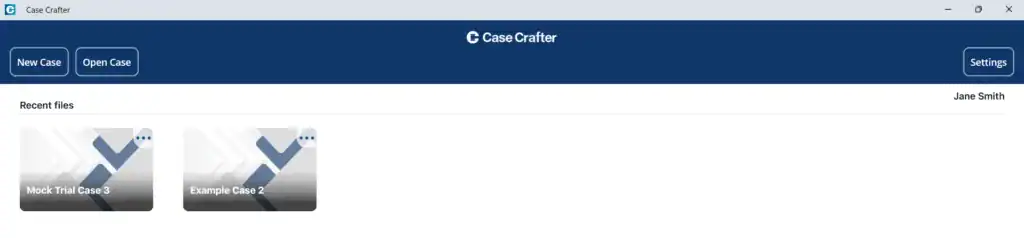
Each case is presented in the Recent files area on the main page. To open a case, see Open Case.

Case properties

To change the case name, add a case number or set a case image, open the menu (three lines) in the top left corner of the case and click Properties. The Case Properties window opens.

The Case Properties window in Case Crafter with case name, case number and case image

Case name: the name shown in the header and on the main page.

Case number: the court’s number for the case. It is filled in as the footer on exhibit stickers, so you only enter it once. See Exhibit sticker under File Review Tools.

Case image: the cover shown on the case card on the main page. Click Remove image to remove it.

Click Save.
FAQ

  1. Where are my cases saved?
    A cloud case is stored inside the app on each of your devices and synced to the cloud. A local case is stored in a folder with the case name at the location you specify.
  2. What files are created when I make a new case?
    For a local case, Case Crafter creates a folder containing a searchindex folder, and a casedatabase data  file—these are required for your case to function correctly.
  3. Can I move my case folder to another location later?
    For a local case, yes, but make sure Case Crafter is closed before moving the folder. Moving while open can cause errors.
  4. Why doesn’t my iPad suggest a save location?
    Unlike Windows or macOS, iPadOS requires you to select a storage location for each new local case manually. Cloud cases need no location.